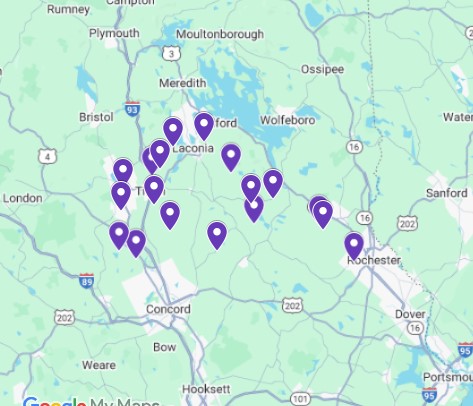
In 2017 I wrote about planning your sweet maple road trip. There’s been a lot of water under the bridge since then and some technological changes. This year, for the first time, I used Google My Maps. Rather than planning a route like I did with MapQuest, Google allows me to mark each farm with a pin and be able to choose on the fly which place to go to next. On my desktop there is an icon that will give me step-by-step directions though I don’t see this on my phone. When I click on the pin I get the address which I then type into my GPS. In Vermont and Maine I have gone places that don’t have cell service, places my phone GPS wouldn’t work. I always carry my old Garmin with me so I don’t get stuck somewhere without a map.
Once again, I rely heavily on the State Maple Associations to find locations, and more importantly addresses, to plan out my trip. Most people probably don’t keep a year to year spreadsheet listing all the farms that have belonged to their state association since 2017, and you don’t need to, but you will need names and addresses of your desired goals.
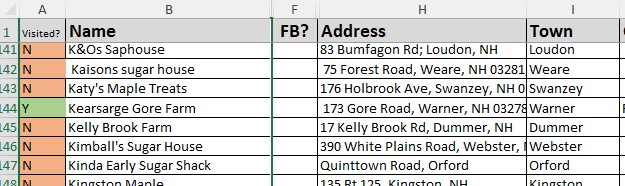
Create spreadsheet with Name and address, including street, town, and state. Add notes – when the place is open or why that one might be special. You can adjust your data display so these notes show up on your map. Because my Excel data file has multiple pages, I save only the current list on a new Excel spreadsheet in my “Downloads” file because, if all you’re doing with it is creating the map, it can be deleted when you are finished. You can also keep the folder open where you have saved it and drag and drop from there.
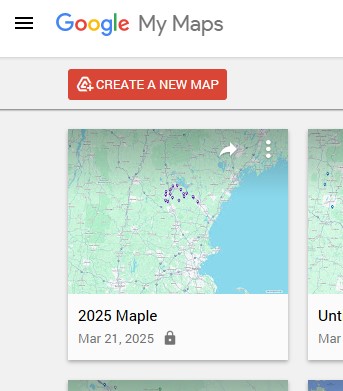
Open Google My Maps. The link that got me here was http://www.google.com/maps/d/ Click the hamburger (the 3 parallel lines in the upper left corner), choose “Create a new map”, and click “create” in the box that pops up. If you click on “untitled layer” you can rename your layer. Click on “import” and find your spreadsheet; either browse or drag and drop. Google will then allow you to choose the columns that contain your address information. When you then choose “Continue”, you will be able to choose the “name” column it will use to label your pins. Click “finish”.
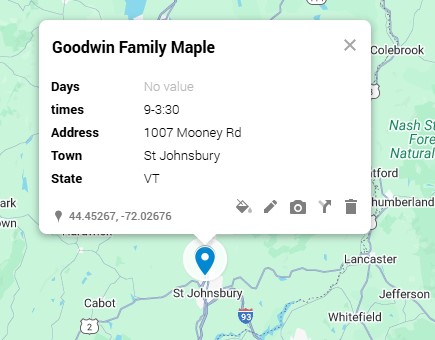
When you see your map, you will see the pins marking the addresses you created. If you click on the pin, you can adjust what you can see on the label. I choose to see the name and hours they are open in addition to the address. I will often direct my tours so I end up far from home so that this drive can take place after a day full of adventures when the farms are closed.
Most importantly, have a sweet time visiting!
 HodgePodge Maple
You must be logged in to post a comment.